Trade Log
The Trade Log is the core of TradeFlow — a full-featured trade journal where you record, organize, filter, and analyze every trade.
Adding a Trade
Click the Add Trade button to open the trade entry form in a slide-out panel. Each trade captures:
| Field | Description |
|---|---|
| Symbol | Ticker symbol (e.g., ES, NQ, AAPL) |
| Direction | Long or Short |
| Entry Price | Price at entry |
| Exit Price | Price at exit |
| Entry Date | Date and time of entry |
| Exit Date | Date and time of exit |
| Position Size | Number of contracts or shares |
| P&L | Profit or loss (auto-calculated or manual) |
| Strategy | Select from your saved strategies |
| Account | Select from your trading accounts |
| Fees | Trading fees |
| Commissions | Broker commissions |
| Tags | Flexible labels for categorization |
| Notes | Free-text notes about the trade |
| Take Profits | Multiple TP levels with price, quantity, and date |
| Chart Images | Up to 2 chart screenshots per trade |
Tags
The tag input supports:
- Manual entry — Type a tag name and click the “Add” button or press Enter
- Autocomplete — A dropdown appears showing existing tags that match what you’re typing
- Multiple tags — Add as many tags as needed per trade
- Tags appear as removable badges below the input
Chart Images
Upload up to 2 chart screenshots per trade. Images are:
- Compressed client-side (max 1024px, JPEG at 80% quality)
- Stored as base64 in IndexedDB
- Sent to the AI (Jesse AI) for visual price-action analysis
Trade Table
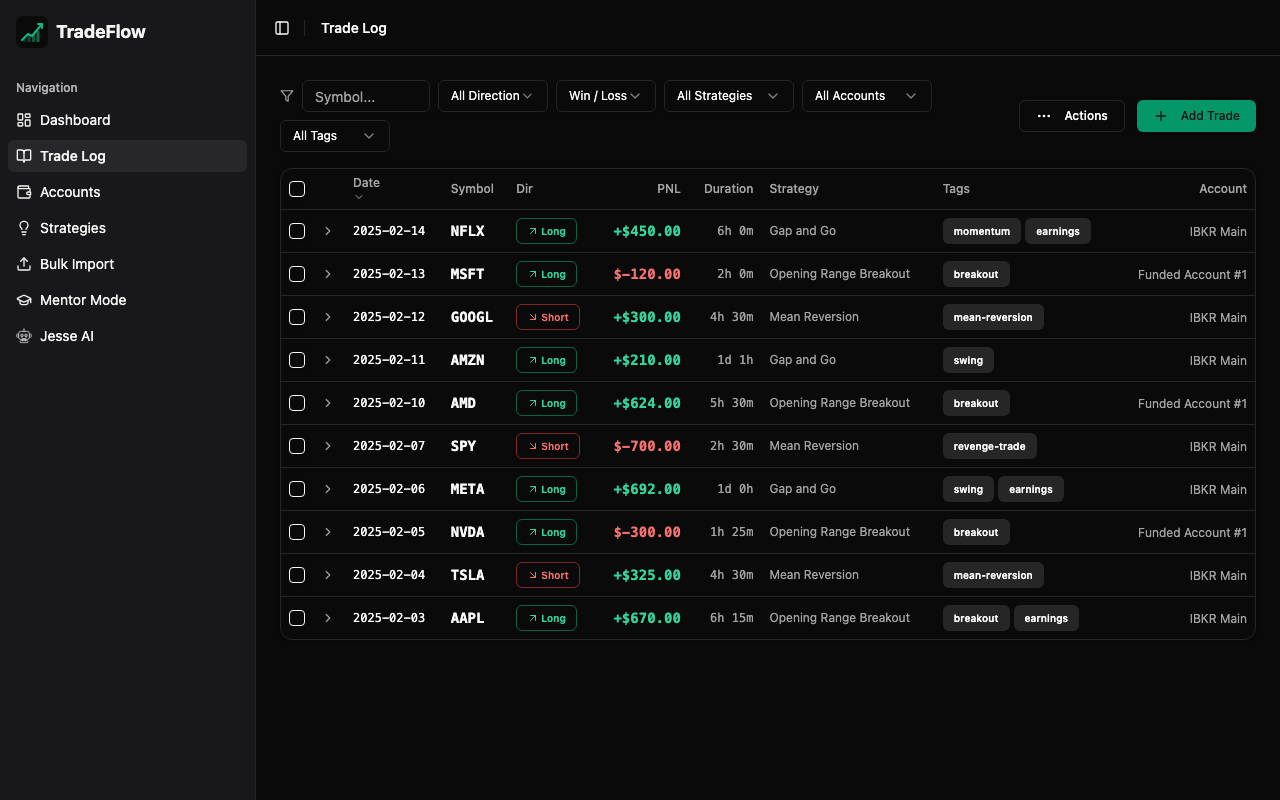
The main table displays all trades with sortable columns:
| Column | Sortable | Description |
|---|---|---|
| Checkbox | — | Select trades for bulk actions |
| Date | Yes | Entry date |
| Symbol | — | Ticker symbol (filterable) |
| Dir | Yes | Long/Short with colored arrow icon |
| Entry | — | Entry price |
| Exit | — | Exit price |
| Size | — | Position size |
| P&L | Yes | Profit/loss with green/red coloring |
| Duration | — | Trade duration (auto-calculated) |
| Account | — | Account name (edit/delete buttons on hover) |
Filtering
A comprehensive filter bar lets you narrow down trades:
- Symbol — Text search matching symbol names
- Direction — Filter by Long, Short, or All
- Result — Filter by Wins, Losses, or All
- Strategy — Dropdown of your saved strategies
- Tags — Dropdown of all tags used across trades
- Account — Dropdown of your trading accounts
Active filter count is shown, and a reset button clears all filters at once.
Accordion Detail Panel
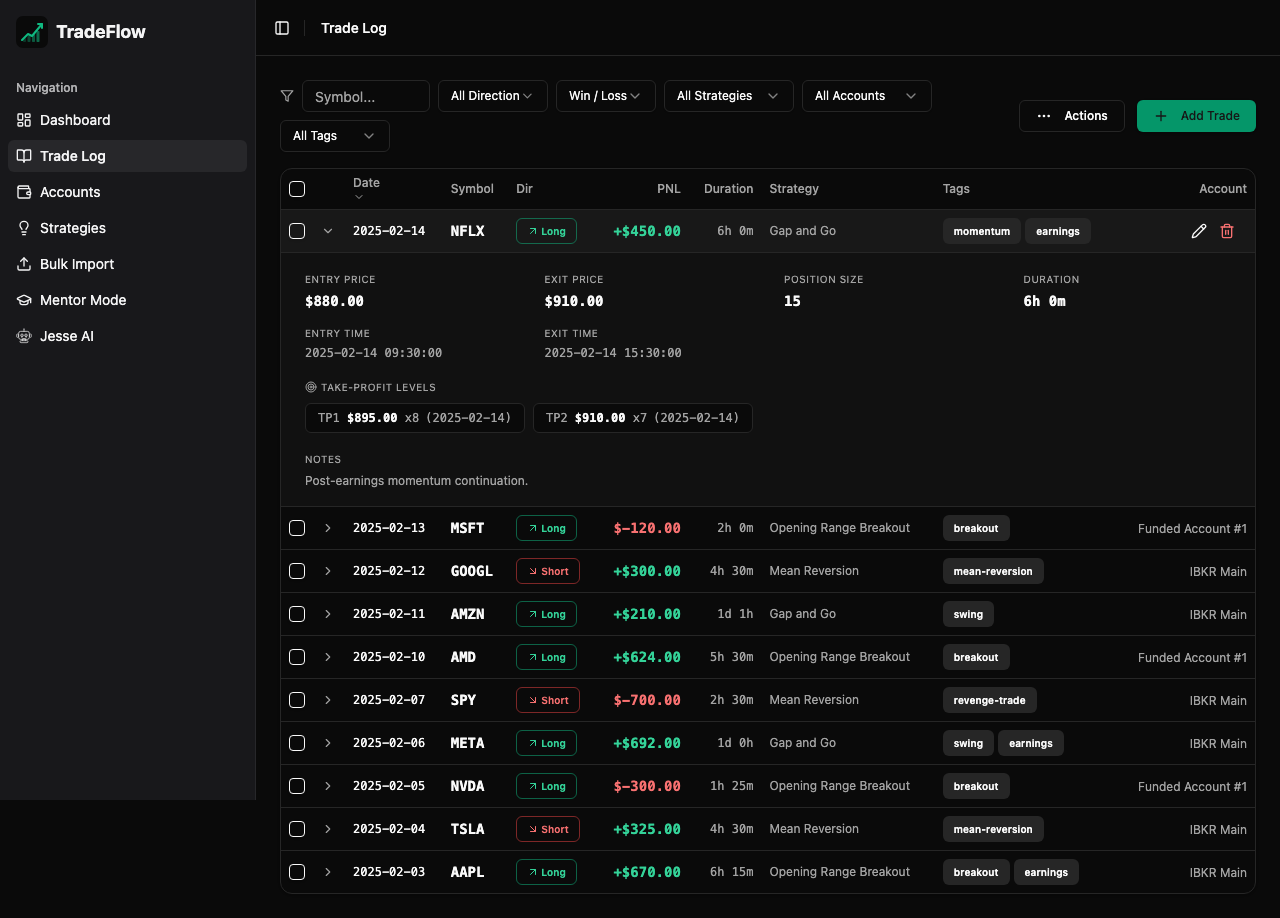
Click any trade row to expand an accordion showing detailed information:
- Entry and exit prices with position size
- Trade duration, fees, and commissions
- Notes
- Take-profit levels (price, quantity, date)
- Chart image thumbnails (click to view full-size)
Selecting Trades
Each row has a checkbox for selection. The header checkbox selects/deselects all visible (filtered) trades. A counter shows how many trades are selected with a “clear” link.
Actions Menu
The Actions dropdown button provides:
When trades are selected:
- Export Selected CSV — Download selected trades as a CSV file
- Export Selected Backup — Download selected trades as a ZIP snapshot
- Delete Selected — Bulk delete with confirmation dialog
Always available:
- Export CSV — Export all filtered (or all) trades as CSV
- Full Backup (.zip) — Complete database snapshot including images
Editing and Deleting
- Edit: Hover over a trade row and click the pencil icon, or click the row to expand then edit from the detail panel
- Delete: Hover over a trade row and click the red trash icon. A confirmation dialog prevents accidental deletions.