Bulk Import
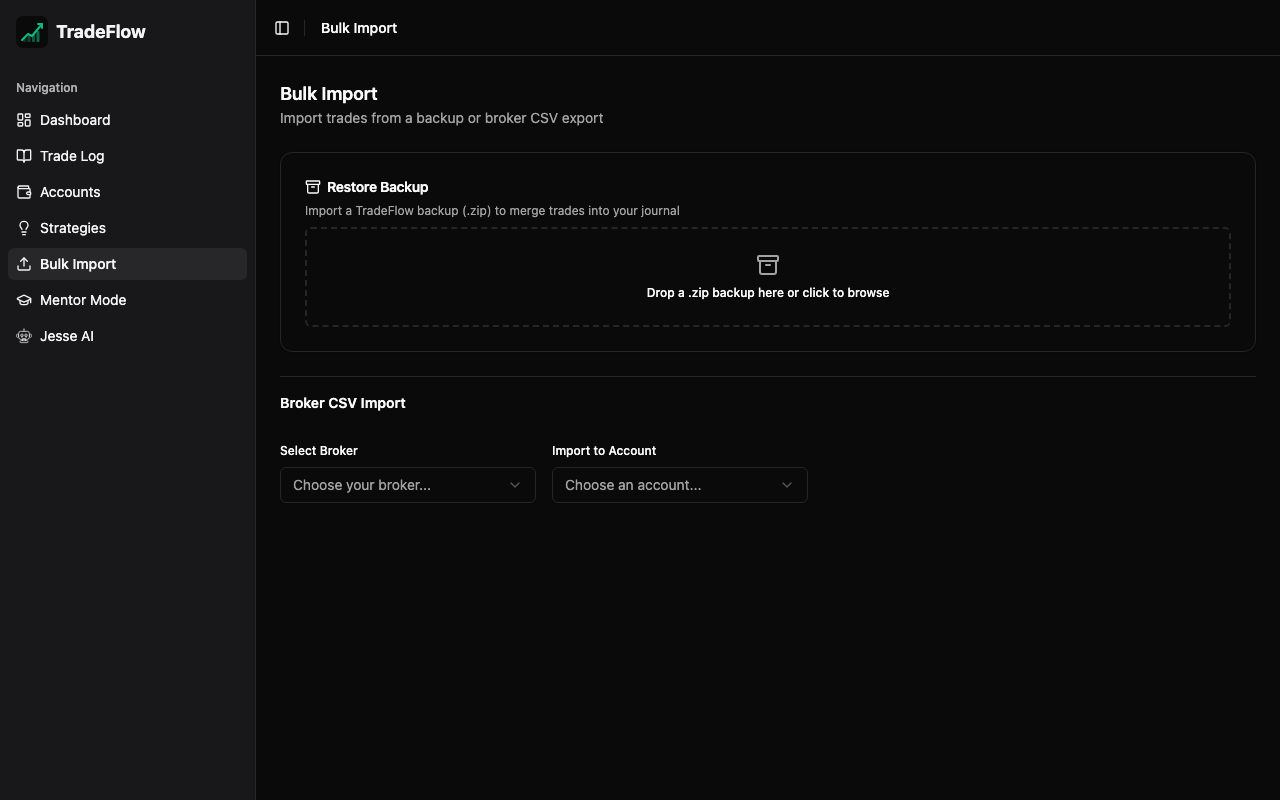
The Bulk Import page lets you import trades from broker CSV exports. It supports two brokers out of the box and provides tools for handling scale-out trades. A collapsible Restore from Backup section at the bottom allows restoring .zip database snapshots.
Supported Brokers
TopstepX
TopstepX CSV exports contain one row per trade with columns for symbol, direction, entry/exit prices, P&L, and timestamps. TradeFlow maps these fields automatically.
Tradovate
Tradovate CSV exports contain individual order fills rather than complete trades. TradeFlow uses a FIFO (First In, First Out) position reconstruction algorithm to:
- Parse each fill (buy/sell with timestamp, price, quantity)
- Reconstruct complete trades by matching entries to exits
- Calculate P&L using hardcoded futures contract multipliers (ES, NQ, YM, CL, GC, etc.)
- Compute trade duration from first entry fill to last exit fill
Broker CSV Import
1. Select Broker
Choose your broker from the dropdown at the top of the page. This determines which CSV parser is used.
2. Upload CSV
Select or drag-and-drop your broker’s CSV export file. TradeFlow reads the file, detects column names, and parses trades according to the selected broker format.
3. Select Account
Choose which trading account to assign the imported trades to using the Import to Account dropdown. All trades in the batch will be tagged with this account.
4. Preview Trades
A preview table shows all parsed trades before import:
- Symbol, direction, entry/exit prices
- P&L and duration
- Fees and commissions (when available from the CSV)
5. Merge Scale-Outs (Optional)
If you scale out of positions (multiple partial exits), the import may produce several trades for what was logically a single position. TradeFlow provides a manual merge feature:
- Select the trades you want to merge using checkboxes
- Click the Merge button
- TradeFlow combines them into a single trade with:
- The original entry price
- Multiple take-profit levels recording each partial exit (price, quantity, date)
- Aggregated P&L
This is a user-driven process — TradeFlow does not auto-merge to avoid incorrect groupings.
6. Import
Click Import to save the trades to your database. Trades are added to the trades IndexedDB table and immediately appear in the Trade Log and Dashboard.
Restore from Backup
At the bottom of the Bulk Import page there is a Restore from Backup button. Clicking it expands an accordion section for importing .zip database snapshots:
- Click Restore from Backup to expand the section
- Drop or browse for a
.zipfile created by TradeFlow’s export feature - The manifest is displayed showing trade count, accounts, and strategies
- Click Import to merge the backup into your database
The restore uses a merge-only mode:
- New trades, accounts, and strategies are added
- Existing records (matching by ID) are skipped — no duplicates, no overwrites
- Chart images embedded in the backup are restored to the correct trades
See the Export & Backup Guide for details on creating backups.